
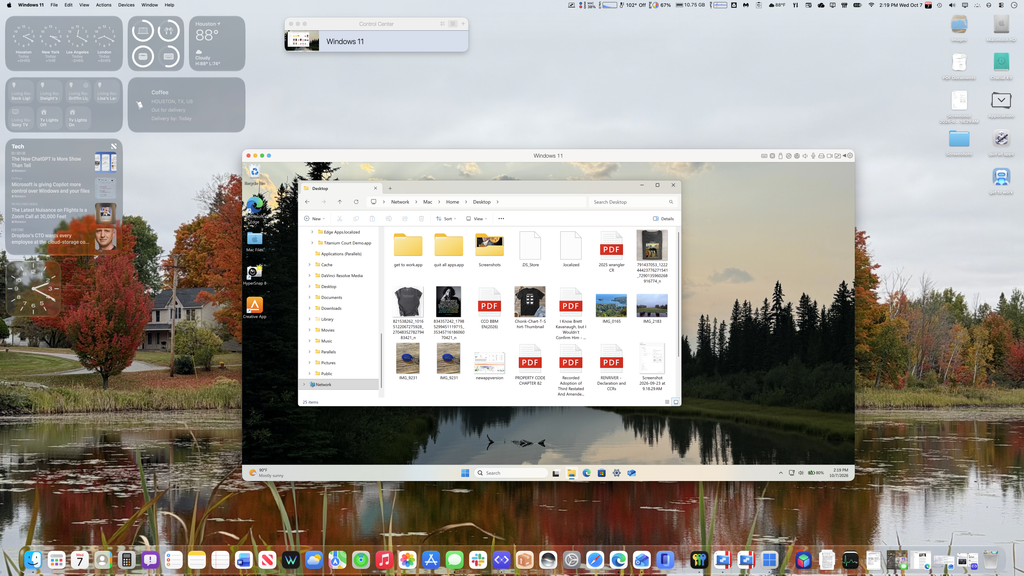
More than six years ago, when Apple unveiled homegrown processors designed for its Mac computers, the company began a long, controlled journey away from the Intel chips it had used since 2006. The advent of Apple Silicon not only changed the company, it has had far-reaching impacts on the entire personal computer industry that are still being felt today.
Since the launch of the initial M1 processor, Apple has continued to support Intel-based Macs with its new operating systems – until now. macOS 27, launched last month, can’t run on chips that use the x86 architecture. Apple also is beginning to wean users off Rosetta 2, the emulation software that allowed Intel-based apps to run usually flawless on Apple Silicon-based computers. Next year’s macOS iteration won’t support Rosetta at all, requiring only apps that are native on the Mx series of processors.
You’re also starting to see third-party developers follow that path. That includes the makers of Parallels Desktop, the popular virtualization software that lets users run Microsoft’s Windows operating system on a Mac. Beginning with Parallels 27, Intel Macs are no longer supported. Parallels says it plans to continue support for those systems with Parallels 26, which will continue to have updates. I asked company spokespeople about how this will work – and for how long – and this is what they said:
“We plan to support Parallels Desktop on Intel for as long as it remains useful to our customers and practical to do so. Apple’s continued security support for macOS Tahoe, the last macOS version to support Intel-based Macs, will also be an important factor in future support decisions.“
Translated: Expect updates and support for Parallels 26 through 2028. I was also told that Parallels engineers are working now on the next update for Parallels 26.
The best option
Parallels Desktop has long been the best way to run a Windows virtual machine on a Mac. In fact, I’ve written in the past that doing so feels faster and more responsive than Windows on x86-based hardware. That has changed with the recent crop of Windows systems that use ARM-based processor, the same architecture on which Apple Silicon is based. They enjoy similar benefits to newer Macs: Speedy, long battery life, highly energy efficient. But if you are using a Mac, unless you need Windows-specific hardware, there’s really no reason for most folks to buy a physical PC to run Windows.
Microsoft has been chasing the promises of ARM for some time, and the latest crop of PCs that use this ARM-based CPUs show the company has achieved its goals. Microsoft also has made great strides in getting software written for x86 machine to work well on Windows for ARM. Mostly, it’s niche titles and some games and graphics-intensive programs that have issues, but the vast majority of common apps run well this way.
And that’s something that Parallels users can cheer about, because a good chunk of the joy of its virtualization is that Microsoft has succeeded in its own goals. Parallels works so well in part because Windows on ARM does.
Parallels Desktop has evolved into a product that’s mature. While each update of the software often packed in a slew of new features in early days, the great leaps now are fewer and farther between. The company also has shifted its focus toward developers and business users – while earlier versions used to tout improvements in running games, the latest iterations offer features for more serious use cases. As a result there are four different versions of Parallels Desktop: Standard, for most everyday uses; Pro, good for developers and power users (and maybe gamers); Business. There is also an Enterprise Edition for big companies. Higher-end features at limited to Pro and above, but most folks will do just fine with Standard.
Take, for example, Parallels 27’s use of a newer version of OpenGL. All the tiers of Parallels now support version 4.3, which enables high-end graphics apps like ArcGIS Pro, a mapping program. The graphics system now is built around Metal, Apple’s own platform, and OpenGL 4.3 works with this. ArcGIS users should notice a substantial improvement in how this popular app performs.
Parallels 27 also has support for the Scalable Matrix Extension (SME), a feature used to accelerate AI application, on M4, M5 and the newest M5 Macs. This is limited to the Pro, Business and Enterprise versions. And if you have an M3 or older Apple Silicon Mac, this feature won’t be available to you because the hardware doesn’t support it.
I asked Parallels if the new OpenGL 4.3 driver might have a positive impact on games, and this is what they said:
“Yes, there can be benefits for gaming, particularly for Windows games and other applications that rely on OpenGL. Parallels first transitioned Direct3D graphics workloads to a Metal backend with Parallels Desktop 15 in 2019, which delivered a 15% performance improvement at the time. With Parallels Desktop 27, we’ve now transitioned OpenGL workloads to Metal as well, with our testing showing up to 2.6x higher OpenGL frame rates in the initial release.
That said, the impact will vary depending on the game and the graphics APIs it uses. Because this was a significant refactoring of the graphics stack, we also can’t attribute every performance improvement exclusively to Metal. Some gains may come from other efficiencies we introduced as part of the new graphics implementation.“
Translated: Yeah, games might be better, but don’t count on it. And if they are, it may not have to do with OpenGL 4.3.
Running Parallels
Me & Parallels go way back. In 2008, I wrote “Running Windows on Your Mac” (Peachpit Press), which detailed different ways to get Windows running on Mac hardware that came with Intel processors. It was the only book to address the subject, and it covered virtualization – in which Windows runs in a virtual computer set up in the memory of an actual computer – and Boot Camp, Apple’s system that let you choose Windows or macOS at startup. In the virtualization section, it looked at other software, such as VMWare Fusion and VirtualBox, both of which are still around.
I’ve been using Parallels Desktop 27 since it was released in September on an M5 MacBook Pro with 32 GB of memory and a 1-TB SSD. I mostly use this laptop as a desktop in clamshell mode, connected to a 32-inch 4K Dell UltraSharp monitor. I use it mostly for everyday, common tasks, as well as for some apps that just work better in a PC.
For example, I’ve got a set of Creative’s Pebble X Plus speakers that can be configured via an app. The Mac app is just this side of worthless (it hasn’t been updated in five years), while the Windows app is full-featured and lets you adjust playback and recording settings, as well as tinker with the speaker’s lighting, and update firmware and drivers.
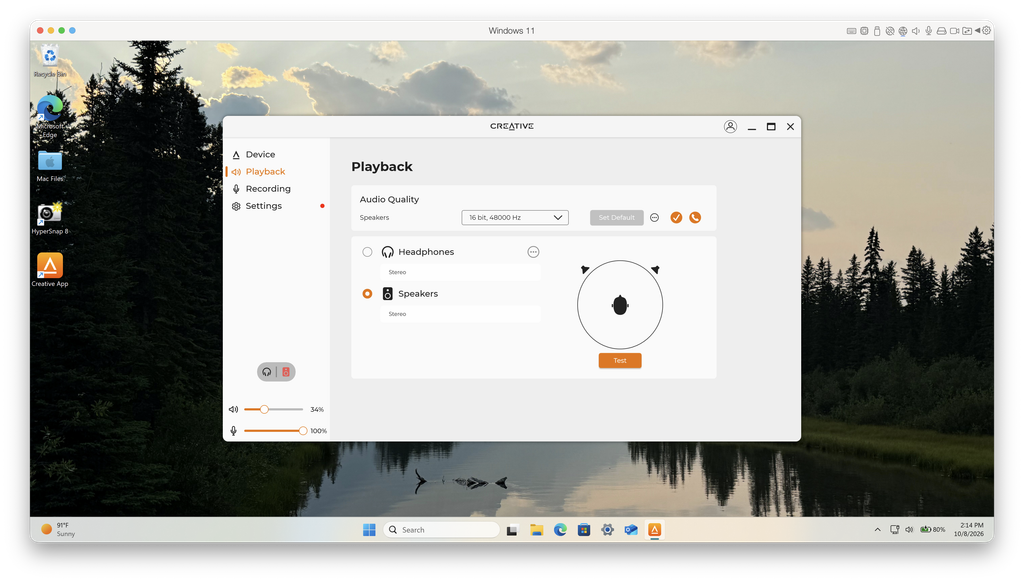
I’m also partial to a venerable Windows image-editing software called HyperSnap. It has been around forever but is still being developed, and even then I’m happy with version 8 that dates back to 2023 (it’s now up to version 10). It’s a relatively obscure, older app with a long history on Windows, and it runs quickly and without issue on Parallels 27.
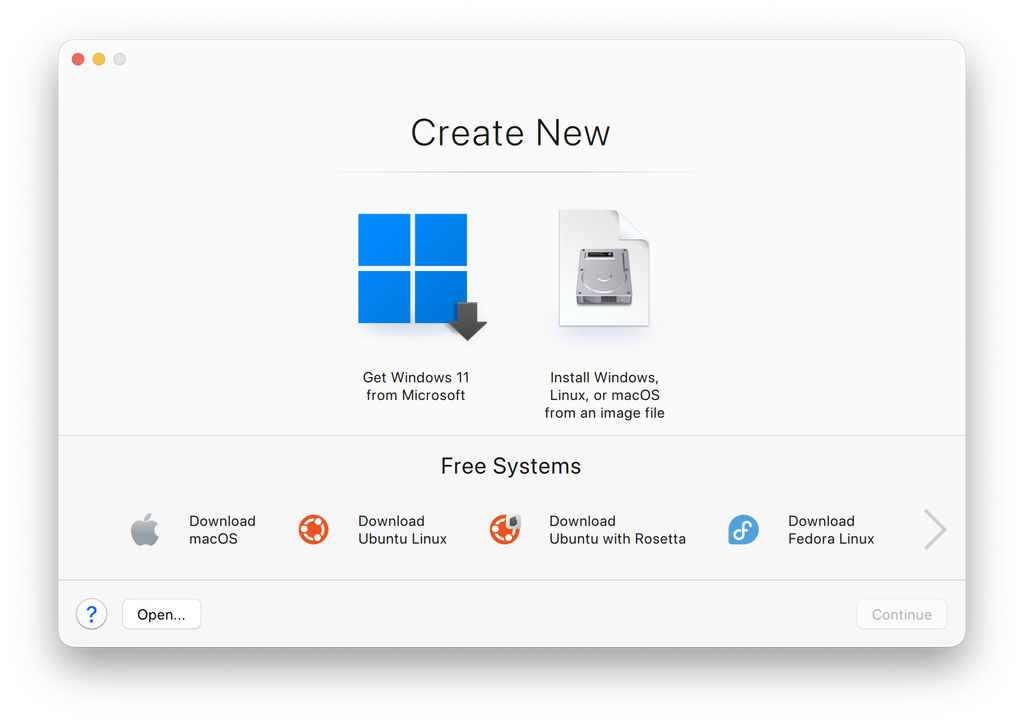
If you’ve never used Parallels before but need the ability to use Windows (and some flavors of Linux), you’ll be pleasantly surprised at the setup. You can download and install Windows for ARM directly without the Parallels app, and the process is a lot simpler than installing a fresh version of Windows on a PC. (You’ll still need to buy a separate license for Windows 11, though you can use it for a while without entering a valid product key before it starts nagging you.)
Parallels also gives you the option to let the software manage the resources it’s using. You can set a fixed amount of memory to be used by the virtual machine, or you can let Parallels handle it dynamically. This works particularly well if you’ve got a Mac with lots of RAM, as I do, but it also is useful if you’ve got a minimum. (Although you can run Windows in Parallels on an 8-GB Mac, I would not recommend any less than 16 GB.)
As I mentioned earlier, running Windows in Parallels on a Mac can be a better experience than Windows on an Intel PC, and that remains true. The speed and efficiency of doing so is challenged only by the ARM-based Windows PCs you can now buy. That was true when I was using my 2020 MacBook Pro with an M1 processor, and it is even more impressive now with my M5 MBP.
However, physical PCs still have one advantage: gaming. While you can play high-end games via Windows in Parallels on a Mac, the experience is not going to match that of a native computer. (This is also true of ARM-based PCs.) It helps to have a lot of memory, and even better if you’ve got a Mac with one of the latest M5 Pro, Max or Ultra processors.
If you need to a Windows system for development, to run mainstream business or productivity titles, or because you have a favorite Windows app you just can’t give up, it is an excellent alternative to shelling out for PC hardware.
Yeah, it’s a subscription
Parallels moved to a subscription-based business model a while back. There remains a one-time-purchase option, but it’s only on the lowest-end version and it’s more than the list price of two years of subscription pricing. I know a lot of folks chafe at subscription software, but it really is a more equitable way to fund ongoing development of an app like Parallels.
As mentioned earlier, the Standard version is fine for mainstream home and productivity use. It lists for $99.99 a year (currently discounted to $39.99), and the one-time-purchase option is $219.99. There are resource limitations with Standard, including a ceiling of 8 GB of RAM on a virtual machine. The one-time-purchase option limits you to 30 days of technical support; all the subscription versions come with unlimited support.
The Pro version, which is aimed at power users and developers, lists for $119.99 annually (discounted to $47.99). You can also pay for a two-year subscription for $239.98 (discounted to $159.99).
The Business Edition, aimed at businesses and organizations, is $149.99 annually ($97.49 discounted) or two years for $299.98 (discounted to $209.99)
There are also student discounts, as well as discounts for those upgrading from previous version.